Wednesday, June 18, 2014

6 Ways Google Alerts Can Help You Land A Job


When it comes to cracking the hidden job market (where openings aren’t advertised), knowledge is king. That’s why Google Alerts should be part of your job-search toolkit.

What are Google Alerts?

They’re free emails Google automatically sends you whenever the search engine finds information relevant to topics you’ve told it to look for — including articles, news stories, press releases and the like.

You can use Google Alerts to monitor news about any company, nonprofit, product, person or industry relevant to your job search.

Why Google Alerts Help Job Hunters

That kind of “insider information” can give you a big advantage over your competition. You’ll learn about expansions (which means jobs to fill), business opportunities and key personnel changes long before the general public takes notice.

(MORE: Google Yourself When Looking for a Job)

Think of Google Alerts as your personal electronic job search assistant who works 24/7.

Here are six ways to put Google Alerts to good use:

1. Monitor employers you’re interested in. You can use Google Alerts to get the inside scoop on what’s happening at places where you’d like to work. Then, if you decide to apply to them, you can casually drop into your cover letter, resumé or interview the news you’ve picked up.

For example, if you got a Google Alert with a story saying the company plans to expand into China and you speak fluent Mandarin, you’d mention this skill and strengthen your candidacy for a job.

Bad news can sometimes be as useful to you as good news. For instance, a Google Alert revealing that a company is facing a product liability suit might be a signal that the firm will be gearing up to hire more people for its PR or legal teams.

(MORE: How to Research Salaries When Job Hunting)

2. Research employers by location. You can use Google Alerts to track breaking news about employers of interest in a specific geographic area, which can be handy whether you’ll be job-searching where you live or where you plan to move.

For example, if you work in the insurance industry and hope to move to Sarasota, Fla., you might do a Google Alert for Sarasota insurance companies. You might also try search terms like “signed new lease” or “expansion” to stay up-to-date on companies in growth mode.

3. Track people of interest. Since networking and referrals are the best ways to land a job these days, it’s important to keep tabs on people who might be helpful in your job search. LinkedIn is the best online networking site, but Google Alerts let you track breaking news about industry movers and shakers even if they’re not part of your LinkedIn network.

Keep in mind that some major domos don’t update their LinkedIn profiles regularly, so Google Alerts can help you stay current about them.

Once you get a Google Alert with good news about a colleague or contact, you can then send a congratulatory email (or better still, a handwritten note). This small gesture is an effective way to begin, or re-establish, a networking relationship. Just be sure not to taint your congratulatory note with a request for job-search assistance; save that request for a follow-up conversation at a later date.

When you receive an alert about a colleague or industry leader, remember to share the news with other relevant people in your network. They’ll appreciate the information and you never know how your outreach efforts might prove beneficial in your search.

4. Monitor your online footprint. What’s the first thing a potential hiring does after reading your resumé? He or she Googles you and if any “digital dirt” turns up, you’re doomed. That’s why it’s so important to set up a Google Alert for your own name.

Then, if you discover any offending information, you can attempt to get it removed (and if you can’t get it erased, you’ll at least be better prepared to address the issue). For advice on how to get rid of inaccurate information about you online, read the excellent article by Susan P. Joyce at her Job-Hunt.org site, “Online Guide to Defensive Googling.”

5. Curate industry information to build your personal brand as an industry expert. One of the best ways to shine during the job search is to have a strong online presence. You can build yours by taking the information you’ve gathered through Google Alerts and spreading it around.

Write an article for an industry journal, report breaking industry news on your blog or tweet out links to interesting articles about your field.

6. Prepare better for interviews. The knowledge gleaned from Google Alerts about a prospective employer’s challenges, competitors and strategic plans can help you stand out as a job applicant. Use those insights to prepare relevant questions or stories to share in an interview.

For example, you might say, “I read an article in Business Week about your expansion plans in Europe for next year. I was hoping you could tell me more about them.”

How to Set Up Google Alerts

Now you know a variety of ways Google Alerts can be helpful when job hunting. Here’s a quick starter guide for setting them up:

First, go to the Google Alerts homepage.

Next, enter your query just as if you were doing a normal Google search. If the employer’s name is two or more words, put quotation marks around the name. For example, “Yale University” or “JP Morgan Chase.” If you want to set up a search for multiple employers, use the word “OR” (in capital letters) in between the search terms.

You can also add search terms such as “jobs” or “press release” if you only want Google to send you information about them. For example, “Press Release” (“Company A” OR “Scott Brown” OR “Association of Executive Recruiters”).

Don’t trip yourself up by entering too many search terms for any one alert, though. Google allows you to create up to 1,000 alerts, so keep your queries short. If necessary, set up multiple alerts for different topics. For more tips and tricks on filtering searches, check out Google’s suggestions.

To avoid bombarding you with unwanted emails, Google asks you to refine your search using several different filters. The first, “Result type” gives you the option of receiving all news relevant to your search terms or just news related to blogs, books, etc. In most cases, it’s best to select “everything” and if you get too many responses, refine the filter later. The other filters (language preference, etc.) are self-explanatory.

In case you’re worried about being bombarded by email, Google asks if you want to receive the updates “as it happens,” “once a day” or “once a week,” so you can decide how often Alerts will arrive.

Once you’ve decided on what you want Google to look for, select your delivery preferences (email or RSS feed). Then click “Create Alert.” From then on, your alerts will be delivered automatically.

Once you start getting your Google Alerts, adjust them as needed and you’ll be on your way.

Source: Forbes
Tuesday, October 29, 2013

Ten essential tips for searching the Web


Finding just the right page among the billions on the Web requires not only a search engine but also a bit of know-how. Here is a selection of my favorite tips for searching the Web.

1. Search for a phrase

To search for an exact, complete phrase and not just its constituent words, put it in quotation marks. For example, instead of typing at sunrise on my birthdaytype ”at sunrise on my birthday”. The number of hits will shrink dramatically, as you’ll see only pages that include that exact phrase.

2. Be more specific

If you want to find articles about managing bookmarks in Safari on an iPhone running iOS 7, don’t search for just manage bookmarks. Throw all those terms in: manage bookmarks safari iphone ios 7. The more information you provide, the more useful your results are likely to be.

3. Exclude a word

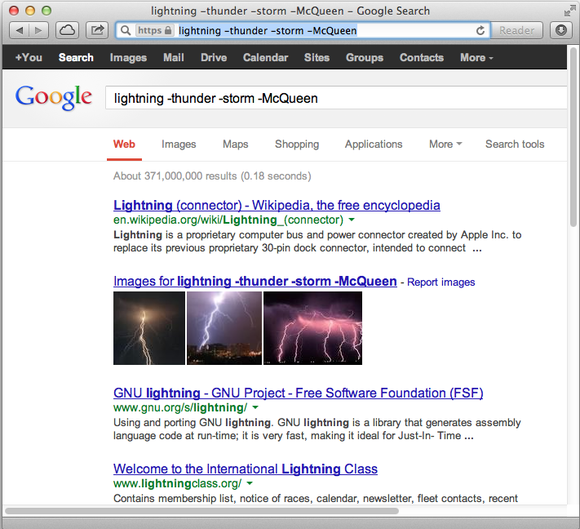
To make sure your search for information on the connector your iPhone uses doesn’t return matches about an atmospheric phenomenon or a fictional race car, put a hyphen (-) in front of terms that should disqualify a page from appearing in Google’s results—for example, lightning -thunder -storm -McQueen.
Get more specific by excluding certain words from your search.

4. Use your own words

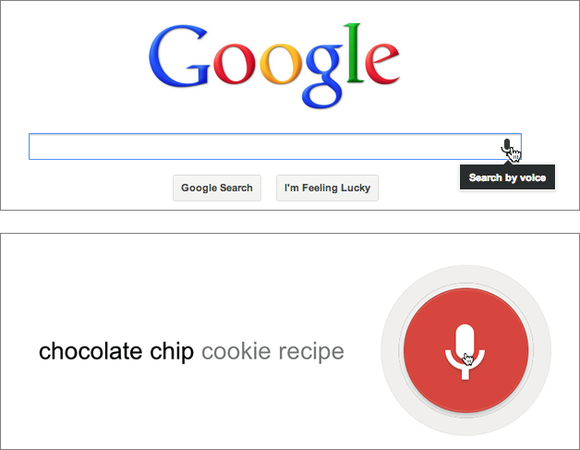
If you visit Google.com in Google Chrome, you can click the microphone icon on the right side of the search field and speak your search terms out loud. As soon as you finish talking, Google displays matching results and sometimes offers a summary aloud.
In Google Chrome, go to the Google homepage, click the microphone icon (top), and start talking. Whatever you say appears on screen (bottom), followed shortly thereafter by matching search results.

5. Try an advanced search

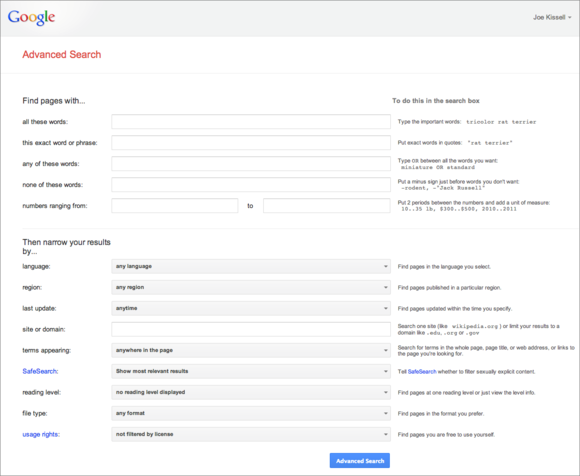
If you want much more control over your searches, such as specifying which geographic regions to search in, how recently created a page should be, or the page’s reading level, go to Google’s Advanced Search page or, after performing a basic search, click the gear icon in the upper-right corner of the results page and choose Advanced Search from the pop-up menu.
Google’s Advanced Search page lets you fill out a form with options for a detailed, specific search.

6. Convert, calculate, and more

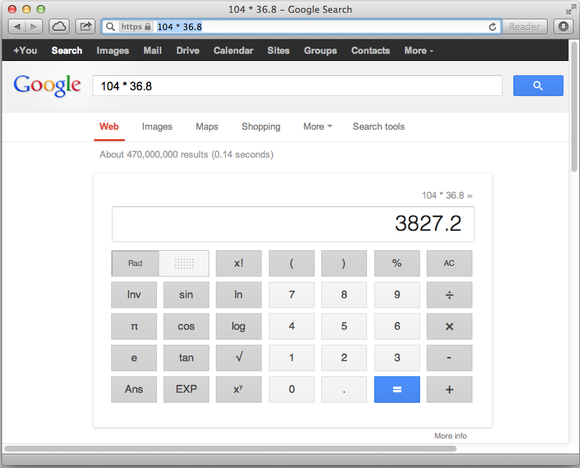
You can also use Google to find all sorts of information besides lists of webpages. Google can handle calculations (try 104 * 36.8), currency conversions (185 dollars in euros), time-zone conversions (time in Paris), weather forecasts (weather San Diego), word definitions (define: pedantic), and a great many other things.
You don’t need a calculator (or a calculator app) if you have a browser open.

7. Learn from the source

A great place to learn dozens of additional tips for using Google is Google itself. For example, Google’s “Basic search help” and “Tips & Tricks” pages have loads of tricks and shortcuts you can use.

8. Simplify Google URLs

One thing I’ve come to dislike about Google, however, is that the links on its results page are all Google URLs that redirect you to the original page. For example, if you search for macworld, the first hit is for www.macworld.com. However, if you try to copy the URL, it’ll look something like this:
https://www.google.com/url?sa=t&rct=j&q=&esrc=s&source=web&cd=1&cad=rja&ved=0CCwQFjAA&url=http%3A%2F%2Fwww.macworld.com%2F&ei=YL48UrOEPYbyQGA3ICIBg&usg=AFQjCNF8KJ4binisdLIm41H5qMrvHdQgw
And, depending on your browser, this sort of URL may also throw off your browsing history, making it difficult to see which sites you’ve been to.
Luckily, you can solve this problem with a browser extension. My pick for Apple’s Safari is Shaun Inman’s free Detox. (It was originally designed for Twitter, but it works great for Google, too.) For Google Chrome, first install the free Tampermonkey, and then add the script Scrub Google Redirect Links. For Mozilla Firefox, try Wladimir Palant’s free Google/Yandex search link fix.

9. Use another search engine

Even the best Google search won’t help you find pages that Google hasn’t indexed, or items that are on page 5987 out of 28,001. If Google isn’t cutting it, you have alternatives. Competitors, including BingYahooAsk.com, and DuckDuckGo, may point you to sites that don’t show up in Google. And because each search engine prioritizes search results differently, the page you’re looking for may be more prominent in one than in another. If you get stuck, trying the same search in another engine may do the trick.

10. Try a metasearch

If you frequently need to search across multiple engines (and, perhaps, on highly specific databases that store information not indexed in general-purpose public search engines), you might be a good candidate for DevonAgent Pro (4 out of 5 rating), which can query many sites and services at once and summarize search results in a way that exposes connections between related concepts.

src:techgig
Wednesday, September 25, 2013

Choosing a Baby Name by Birth Star


Choosing a Baby Name by Birth Star

It is quite common amoung some communities of Hindus to choose the names of their kids from the birth star. Here I provide a table with birth  stars and the corresponding syllable the name should start with. This chart with names starting letters/ syllables and birth star is for reference only and it is advised to consult an astrologer for a final decision on the same. 


Tags:  Choosing a Baby Name by Birth Star , Birth star starting syllable chart, find first letter by nakshatra


Star

Starting Syllable

Ashwini (Aswathi) Chu, Che, Cho, La
Ashvini - Pada 1 (Chu), Ashvini - Pada 2 (Che), Ashvini - Pada 3 (Cho), Ashvini - Pada 4 (La)
Bharani Li, Lu, Le, Lo
Bharani - Pada 1 (Li), Bharani - Pada 2 (Lu), Bharani - Pada 3 (Le), Bharani - Pada 4 (Lo)
Krithika (Karthikai) A, I, U, E
Krittika - Pada 1 (A), Krittika - Pada 2 (I), Krittika - Pada 3 (U), Krittika - Pada 4 (E)
Rohini O, Va, Vi, Vu
Rohini - Pada 1 (O), Rohini - Pada 2 (Va/Ba), Rohini - Pada 3 (Vi/Bi), Rohini - Pada 4 (Vu/Bu)
Mrigashira (Magayiriyam) Ve, Vo, Ka, Ke
Mrigashirsha - Pada 1 (Ve/Be), Mrigashirsha - Pada 2 (Vo/Bo), Mrigashirsha - Pada 3 (Ka), Mrigashirsha - Pada 4 (Ke)
Thiruvadhirai (Thiruvathira, Ardra) Ku, Gha, Na, Cha
Ardra - Pada 1 (Ku), Ardra - Pada 2 (Gha), Ardra - Pada 3 (Ng/Na), Ardra - Pada 4 (Cha)
Punarvasu (Punartham) Ke, Ko, Ha, Hi
Punarvasu - Pada 1 (Ke), Punarvasu - Pada 2 (Ko), Punarvasu - Pada 3 (Ha), Punarvasu - Pada 4 (Hi)
Pushya (Pooyam) Hu, He, Ho, Da
Pushya - Pada 1 (Hu), Pushya - Pada 2 (He), Pushya - Pada 3 (Ho), Pushya - Pada 4 (Da)
Aslesha (Ayilyam) Di, Du, De, Do
Ashlesha - Pada 1 (Di), Ashlesha - Pada 2 (Du), Ashlesha - Pada 3 (De), Ashlesha - Pada 4 (Do)
Magha (Magam) Ma, Mi, Mu, Me
Magha - Pada 1 (Ma), Magha - Pada 2 (Mi), Magha - Pada 3 (Mu), Magha - Pada 4 (Me)
Purva Phalguni (Pooram) Mo, Ta, Ti, Tu
Purva Phalguni - Pada 1 (Mo), Purva Phalguni - Pada 2 (Ta), Purva Phalguni - Pada 3 (Ti), Purva Phalguni - Pada 4 (Tu)
Uttara Phalguni (Uthram) Te, To, Pa, Pi
Uttara Phalguni - Pada 1 (Te), Uttara Phalguni - Pada 2 (To), Uttara Phalguni - Pada 3 (Pa), Uttara Phalguni - Pada 4 (Pi)
Hasta (Atham) Pu, Sha, Na, Tha
Hasta - Pada 1 (Pu), Hasta - Pada 2 (Sha), Hasta - Pada 3 (Na), Hasta - Pada 4 (Tha)
Chitra (Chithira) Pe, Po, Ra, Ri
Chitra - Pada 1 (Pe), Chitra - Pada 2 (Po), Chitra - Pada 3 (Ra), Chitra - Pada 4 (Ri)
Swati (Chothy) Ru, Re, Ro,Ta
Svati - Pada 1 (Ru), Svati - Pada 2 (Re), Svati - Pada 3 (Ro), Svati - Pada 4 (Ta)
Visakha (Visakam) Ti, Tu, Te, To
Vishakha - Pada 1 (Ti), Vishakha - Pada 2 (Tu), Vishakha - Pada 3 (Te), Vishakha - Pada 4 (To)
Anuradha (Anizham) Na, Ni, Nu, Ne
Anuradha - Pada 1 (Na), Anuradha - Pada 2 (Ni), Anuradha - Pada 3 (Nu), Anuradha - Pada 4 (Ne)
Jyestha (Triketta) No, Ya, Yi, Yu
Jyeshtha - Pada 1 (No), Jyeshtha - Pada 2 (Ya), Jyeshtha - Pada 3 (Yi), Jyeshtha - Pada 4 (Yu)
Moola (Moolam) Ye, Yo, Bha, Bhi
Moola - Pada 1 (Ye), Moola - Pada 2 (Yo), Moola - Pada 3 (Bha), Moola - Pada 4 (Bhi)
PurvaAshadha (Pooradam) Bhu, Da, Pha, Da
PurvaAshadha - Pada 1 (Bhu), PurvaAshadha - Pada 2 (Da), PurvaAshadha - Pada 3 (Bha/Pha), PurvaAshadha - Pada 4 (Da)
UttaraAshadha (Uthradam) Bhe, Bho, Ja, Ji
UttaraAshadha - Pada 1 (Bhe), UttaraAshadha - Pada 2 (Bho), UttaraAshadha - Pada 3 (Ja), UttaraAshadha - Pada 4 (Ji)
Sravana (Thiruvonam) Ju/Khi, Je/Khu, Jo/Khe, Gha/Kho
Shravana - Pada 1 (Ju/Khi), Shravana - Pada 2 (Je/Khu), Shravana - Pada 3 (Jo/Khe), Shravana - Pada 4 (Gha/Kho)
Dhanishta, Shravishtha (Avittam) Ga, Gi, Gu, Ge
Dhanishta - Pada 1 (Ga), Dhanishta - Pada 2 (Gi), Dhanishta - Pada 3 (Gu), Dhanishta - Pada 4 (Ge)
Shatabhisha (Chathayam) Go, Sa, Si, Su
Shatabhisha - Pada1 (Go), Shatabhisha - Pada2 (Sa), Shatabhisha - Pada3 (Si), Shatabhisha - Pada4 (Su)
PurvaBhadra (Pururuttathy) Se, So, Da, Di
PurvaBhadrapada - Pada 1 (Se), PurvaBhadrapada - Pada 2 (So), PurvaBhadrapada - Pada 3 (Da), PurvaBhadrapada - Pada 4 (Di)
Uttara Bhadra (Uthrattathy) Du, Tha, Jha, Da/Tra
UttaraBhadrapada - Pada 1 (Du), UttaraBhadrapada - Pada 2 (Tha), UttaraBhadrapada - Pada 3 (Jha), UttaraBhadrapada - Pada 4 (Da/Tra)
Revathi Do, De, Cha ,Chi
Revati - Pada 1 (De), Revati - Pada 2 (Do), Revati - Pada 3 (Cha), Revati - Pada 4 (Chi) 

How to make Documention (or FAQ)- html


To create documention in html please follow below steps:

For examle, lets take  titles are title1, title2, title3 and contents are content1, content2, content3

The code will be:

<html>

<title>How to make Documention (or FAQ) </title>

<h1>Documentation</h1>

<a name="contents section1"><a href="#section2">title1</a><br/>

<a name="contents section2"><a href="#section3">title2</a><br/>

<a name="contents section3"><a href="#section4">title3</a><br/>


<h3><a name="section1">title1</a></h3>
<p>content1</p>


<h3><a name="section2">title2</a></h3>
<p>content2</p>

<h3><a name="section3">title3</a></h3>
<p>content3</p>

</html>


Monday, September 16, 2013

Google AdSense Alternatives


Chitika

Kontera

Clicksor

Vibrant Media

AdSide

Infolinks


Tuesday, April 2, 2013

Earn money from your blog


Let us explore a few methods which help to earn money from a blog:


GOOGLE ADSENSE

google-adsense

How does it work?

Google AdSense is the most popular way to get paid by Google. You write blog posts, Google displays advertisements on your blog. If a visitor sees or clicks on them , you get paid.

How do you get paid?

Google sends you a check if your revenue crosses $100 or more for a given month. The best part is that you can convert the check in  your local currencies.

Who uses it?

It is widely on the internet. E.g. The New York Times website

How to register?

You will need to register at Google AdSense site. You will need a blog, enter a postal address and a Google account to register. Google will review your blog before advertisements can be displayed.

If you have a Blogger blog, it is very easy to setup Google AdSense advertisements.

AMAZON ASSOCIATES

amazon-associates

How does it work?

Amazon displays advertisements of its products on your blog. If a visitor buys the product you will get a part of it depending on the referral rate.

Eg: If a user buys a product of $100 and your referral rate is 10 % you will get $10 from Amazon.

You need to add JavaScript code in your blog's posts.

How do you get paid?

Amazon sends you a check if your revenue crosses $100 or more for a given month. There are options like Gift card and direct deposit in bank (only US). 


Who uses it?

It is used widely on sites and blogs

How to register?

You will need to register at Amazon Affliates site. You will need a blog, enter a postal address and a Amazon account to register.


 UNRULY MEDIA


unruly-media

How does it work?

Unruly media pays you if you include a sponsored video inside your blog posts. You can also earn money by writing sponsored articles. You need to add JavaScript code in your blog's posts.

How do you get paid?

Unruly media pays you via Paypal if  account balance reaches US$50.

Who uses it?

It is used widely on sites and blogs


How to register?

You will need to register at Unruly Media Publisher site.

LUMINATE


luminate

How does it work?

Luminate  pays you if a user clicks on an image that displays Luminate sponsored advertisements .
It is better known as Google AdSense for images. You need to add JavaScript code in your blog's template.


How do you get paid?

Luminate  pays you via Paypal if  account balance reaches US $10.


Who uses it?

It is used widely on  blogs


How to register?

You will need to register at Luminate Publisher Account site. 

KONTERA

kontera-adds

How does it work?

Kontera pays you if a user clicks on a link sponsored advertisements . You need to add JavaScript code.

Kontera-Links

How do you get paid?

Kontera pays you via Paypal if  account balance reaches US $50. There are options to get paid via wire transfer and check too.


Who uses it?

It is used widely on media websites like News, blogs etc.


How to register?

You will need to register at Kontera Publisher Account site.
Saturday, December 1, 2012

Google allows 10GB attachments in Gmail


Do you feel the 25MB limit for attachments in Gmail is not enough? Well Google seems to have heard your prayers. The search giant has integrated Google Drive-based attachments in its email service so that users can now send files up to 10GB in size. Google Driveis the company's cloud storage service, similar to Microsoft SkyDrive and DropBox. 

On the official Gmail blog, Phil Sharp, Gmail product manager, posted: "you can insert files from Drive directly into an email without leaving your Gmail." He added, "...with Drive, you can insert files up to 10GB -- 400 times larger than what you can send as a traditional attachment. Also, because you're sending a file stored in the cloud, all your recipients will have access to the same, most-up-to-date version." 

In case all the recipients of the mail do not have access to the file in Google Drive, Gmail will prompt the user so the requisite settings can be altered from the open message box itself. Moreover, users also have the option of simply pasting the links of Google Drive files they want to share with the mail recipients in the compose box. 

As of now, Google has only integrated Google Drive-based attachment feature in the new compose box. Therefore, users who had opted out of the new look of compose box need to opt for it once again in order to mail Google Drive-based files. Those who want to mail files bigger than 25MB in size need to transfer them to Google Drive in order to send them via Gmail.


src: techgig
Thursday, October 11, 2012

How to create a personal website for free


Professionally created websites & custom domain names can cost a lot of money. However, you can also create and host as many websites as you like without spending anything, explains ET. 

Instant Homepages 

ABOUT.ME 

After a quick sign-up, About.me helps you create a search engine-optimised homepage with a small biography and links to all your social networks. You can customise the background of the page (upload your own), select a font and choose your favourite colours. It takes only a few minutes and once you publish your page, visitors can email you directly from the page or leave compliments. About.me also tracks your page's statistics and keeps a log of your activity on the page — accessible via a dashboard once you sign in. 

FLAVORS.ME 

Flavors shares many features with About.me. However, it offers a few additional features — you can alter the layout of the homepage, organise content from different sources and add visual effects to your content. The free account lets you add up to five social network services. If you opt for a premium account (US$ 20 per year), you can choose from more designs, add unlimited services, create a mobile optimised webpage, view realtime stats, add a visitor contact form and use Flavors with your own domain name. 

FOLLR.COM 

Follr takes a different approach — they create a virtual visiting card for you. Your card has details of your socialnetworks, skills, work experience and your contact details. It can also automatically update content from your Twitter timeline or details about your influence from Klout/PeerIndex. It even works as a mini social network — you add known people to your network and they vouch for your skills and influence. Upgrading to a premium account (US$ 2.95 per month) gives you statistics & custom page designs. 

DOOID.ME 

A big advantage with Dooid is that it shows you a live preview as you work. In other words, as you add services, tags or change the layout, it shows you a preview of the finished page at the same time. The free account allows you to connect up to 10 services/links and even creates a mobile optimised version of your webpage. Visitors can download your virtual business card with contact details as well as view your social network updates in a 'lifestream'. You can remove the advertisements, add unlimited services, embed a contact form and use a custom domain name by paying US$ 5 per month for a pro account. 

Create & Host Full Websites 

WEEBLY.COM 

With Weebly, you need to first specify the type of site you want to create ( forum, blog, portfolio and so on). You can create a subdomain on Weebly or purchase a new one. Creation couldn't be simpler — you select a theme and then use simple drag-and-drop to add different elements and multimedia. Advanced users can even create ads slots for revenue generation. The owner can also allow other people to manage the website (with admin access). 

YOLA.COM 

Yola offers an easy-to-use graphical user interface to build a website. After selecting your website category, Yola generates a starter website (where every element can be configured to suit your taste). A bottom pane lets you quickly switch between multiple themes, layouts and add widgets where required. Once done with the design, you can publish the site as a Yola subdomain and track your visitors through the admin panel. 

WIX.COM 

Wix is loaded with stylish templates that will suit many different kinds of websites. You can choose a free template and edit it to your liking in Wix's own graphical HTML editor — no coding skills required. After you have customised the template, publishing the website so that anyone can access it takes only a minute. The only issue is that the website address is slightly long and complicated to remember (www.yourusername.wix.com/sitename). 
ZOHO.COM 

Zoho also offers multiple templates to choose from, depending on the style of the website. You can then customise the available templates using a simple drag-and-drop interface — inserting multimedia or embedding elements from third parties is child's play. Zoho even lets you add widgets on the page for useful services like PayPal, Google Adsense, Google Mapsand supports embedding of dynamic content such as user feedback. 

Mobile Website Creators 

OCTOMOBI.COM 

If you need to create a mobile site in minutes, Octomobi does the job really well. Sign up for free, choose a template, edit the layout, add content, upload your logo and your mobile-optimised website is ready. The free account lets you only create a website on the Octomobi network. By paying US$ 9 per month for a pro account you can map the site to your own domain with Google analytics integration. 

ONBILE.COM 

Onbile allows you to create a website as a subdomain (www.yoursitename.onbile.com). You can create a rich mobile site with multiple pages, a catalog, an image gallery or an e-commerce site. The free version of the site has ads on each page and only offers basic site statistics. Opting for a pro account (US$ 12 per month) removes the ads, offers 500MB storage and detailed visitor analytics.


Source: Techgig